

01
Connect your mailbox
Add Gmail or Outlook through secure read-only access. You can connect personal, work, or crew-related mailboxes.
byAir finds travel-related booking emails across your mailbox, extracts the flight details, and adds upcoming trips and past flights to your timeline without manual search or copy-paste.
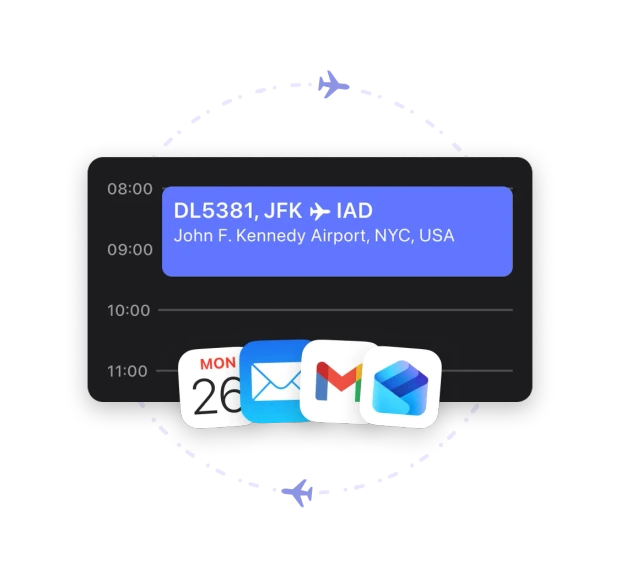
Auto-Scan Email turns the messy travel inbox into a clean flight timeline. You connect a mailbox once; byAir keeps watching for the bookings that matter.
Add Gmail or Outlook through secure read-only access. You can connect personal, work, or crew-related mailboxes.
A travel-related pre-filter narrows the scan before flight details are extracted from booking confirmations and itineraries.
New bookings and matching past flights are added to byAir, ready for tracking, history, stats, and trip organization.
Built for the real ways flights arrive in your inbox: Gmail, Outlook, old booking confirmations, and future itineraries.
Connect Gmail once and let byAir find booking confirmations that belong in your flight timeline.
Bring work and personal Outlook travel emails into the same byAir flight history.
Turn archived airline and travel agency confirmations into a clean record of past flights.
New booking emails can keep future trips ready for tracking, documents, stats, and alerts.
Old flight confirmations often sit quietly in your inbox for years. Auto-Scan Email can turn those archived bookings into a living flight log much faster than adding every route by hand.
Find past bookings from airlines and travel agencies that are still saved in your mailbox.
No hunting for flight numbers, dates, airport pairs, or old itinerary PDFs one by one.
After the first scan, new booking emails can keep flowing into your byAir timeline automatically.
Flights rarely live in one perfect inbox. Connect Gmail and Outlook accounts in one place, then let byAir sort new imports by the mailbox they came from.
Auto-Scan Email should feel magical without feeling mysterious. byAir limits access, filters for travel-related mail, and does not store raw email content.
Mailbox connections are used to read booking emails for import. byAir does not send, edit, or delete email from your account.
The scan first narrows the mailbox to travel-related messages before trying to extract flight details.
Raw email content is scanned on the fly. byAir stores the extracted flight data needed for your timeline, not your email body.
You can remove a mailbox connection whenever you want. Previously imported flights remain in your byAir history.
Connect Gmail or Outlook once, then let byAir find bookings, rebuild history, and keep new trips ready to track.


